How to Translate a PDF in Adobe Acrobat in 2026: The Honest Workarounds and Better Tools
Adobe Acrobat has no translation feature. Learn the workarounds, why they fail, and how layout-aware PDF translation tools handle what Adobe can't.
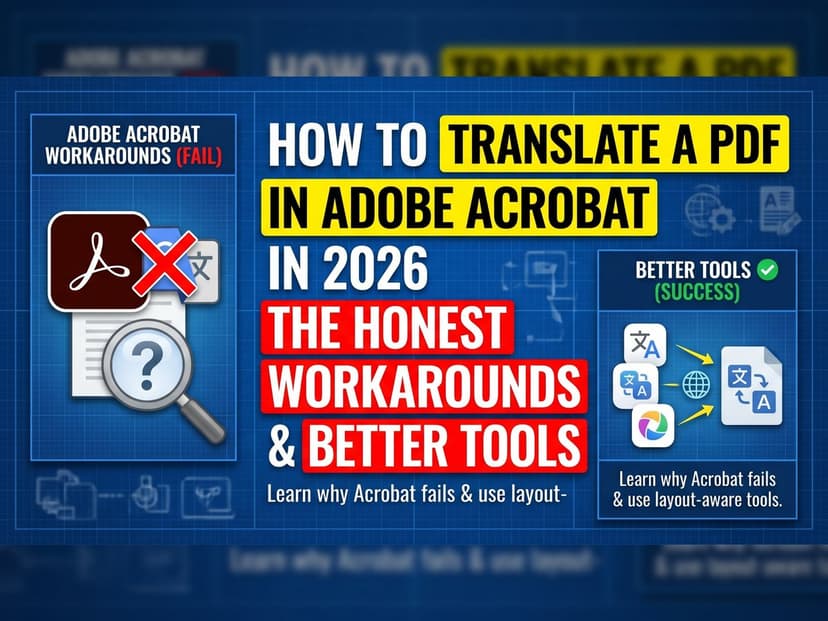
You open Adobe Acrobat, right-click on your PDF, and look for a translate option. You search menus. You check preferences. Nothing. Adobe Acrobat, despite being one of the world's most powerful PDF tools, has zero built-in translation features. This is not a bug. It's by design. And it leaves millions of users stranded with manual workarounds that destroy formatting, eat hours, and produce unprofessional results.
This guide explains why Adobe lacks translation, shows you every workaround available, and demonstrates why each one fails. Then we'll show you what actually works.
Why Adobe Acrobat Has No Translation Feature
Adobe's Focus: File Management, Not Language Processing
Adobe Acrobat excels at editing, annotating, and managing PDF files. But translation is a different discipline entirely. Building a translation engine requires linguistic databases, neural machine translation models, and continuous quality improvements. Adobe decided early on that this wasn't their core business. They built tools for document professionals, not translation specialists.
The Technical Gap
Integrating translation into Acrobat would mean building or licensing a machine translation API, training it on thousands of language pairs, and handling edge cases like RTL languages, character encoding, and text measurement. All of this inside the Acrobat ecosystem. It's technically possible but commercially, Adobe never prioritized it. They expect users to use external tools and reimport.
Workaround 1: Copy-Paste Text into Google Translate
How It Works
Open your PDF in Acrobat. Select all text (Ctrl+A). Copy. Paste into Google Translate. Select target language. Copy the translated output. Paste back into Acrobat (or a new document). Save as new PDF.
Why It Fails
This approach destroys everything Adobe is designed to preserve. Layout? Gone. Multi-column PDFs become single-column gibberish. Tables? Broken across lines. Fonts and colors? Lost. Hyperlinks? Dead. For a simple one-page letter in English to Spanish, it might work. For anything else, it's unusable.
Time Cost
You manually copy-paste. Translate. Paste back. Re-format. Check spacing. Fix line breaks. For a 10-page contract, you're looking at 2.5 hours of manual labor just to get something readable.
Workaround 2: Export to Word, Translate, Convert Back
The Process
Adobe Acrobat can export PDFs to Word format. You export, open in Microsoft Word, use Word's translation feature (or paste into Google Translate), then convert back to PDF using Word's “Export as PDF” feature.
Why This Fails Worse
Every conversion step introduces data loss. PDF to Word: formatting breaks, images shift, text boxes disappear. Word to PDF: Word adds its own default styling, margins change, fonts get substituted. The final PDF looks nothing like the original. For branded documents, contracts, or marketing materials, this approach is professional suicide.
Workaround 3: Adobe's Document Cloud and OCR
What Adobe Offers
Adobe Document Cloud includes basic OCR and file conversion. You can convert scanned PDFs to searchable text, then export to other formats. But there's still no integrated translation.
The Hidden Cost
Adobe Document Cloud requires a paid subscription (starting at $14.99/month for basic, $19.99/month for Standard). You're paying for a tool that doesn't solve your problem. Plus, OCR quality varies by language, and the export-translate-reimport cycle still breaks formatting.
Real-World Scenarios: Why Workarounds Fail in Practice
Scenario 1: A Lawyer Translating a Contract
A contract is 25 pages, formatted with specific margins, page breaks, signature blocks. A lawyer tries the copy-paste method. The translated output is a wall of text with no page breaks. Signature lines are on page 3 instead of page 25. The client sees an unprofessional document. The lawyer redoes it manually, spending 8 hours formatting. Cost of workaround: $1,200 in billable hours.
Scenario 2: A Marketing Manager with Branded PDFs
You have a 12-page product brochure with your company colors, custom fonts, and embedded images. You export to Word. Half the images shift. The colored boxes become gray. Fonts default to Arial. You spend 3 hours in Word fixing formatting. The PDF version looks like a different company made it. Customer sees inconsistent branding. Sales impact: immeasurable.
Scenario 3: A School District Translating IEPs
An IEP (Individualized Education Program) is a legal document. You need versions in Spanish, Portuguese, and Vietnamese. The copy-paste method loses the table structure that organizes accommodations. Parents can't understand it. The school district gets complaints. Legal liability increases because the translated documents don't match the original structure. (See: How schools translate educational documents)
What Document-Aware PDF Translation Actually Does
Reads PDF Structure, Not Just Text
A proper PDF translator reads the PDF's internal structure. It understands where text boxes are positioned, what fonts they use, what colors, what sizes. It translates the text in-place without moving elements. This is why generic copy-paste never works.
Handles Scanned PDFs with OCR
Scanned PDFs are images. There's no selectable text. A document-aware tool runs OCR (optical character recognition) first, detects the text, translates it, and rebuilds it in the original layout. Adobe Acrobat's OCR is basic. Dedicated PDF translators use better OCR trained on 100+ languages.
No File Size Limits
You can upload a 500MB engineering dataset, a 200-page report, whatever. The tool processes it as one cohesive document. Compare this to workarounds where you manually split large files into chunks, translate chunks separately, and pray the reassembly works.
Language Support: What Adobe Can't Cover
Limited Language Ecosystem
If you use Google Translate through copy-paste, you get 133 languages. But quality varies wildly. Languages like Chinese, Korean, Japanese, and Arabic have vastly lower quality than European language pairs. RTL (right-to-left) languages break layout assumptions.
Which Languages Actually Work Well
English to/from Spanish, French, German, Portuguese: solid. English to/from Dutch, Italian, Swedish: good. English to/from Chinese, Arabic, Japanese: inconsistent. Missing entirely: Vietnamese, Thai, Polish, Turkish are either missing or very low quality. For global businesses, this is a serious gap.
Why Using a Dedicated PDF Translator Saves Time and Money
Speed
Upload a PDF. Select language. Download translated PDF. 2 minutes for a 50-page document. With workarounds, you're looking at 2-4 hours of manual work.
Cost
A dedicated PDF translator costs a few dollars per document. Adobe Creative Cloud or Document Cloud adds $15-55/month. And you still don't get translation. Professional human translation runs $0.10-0.30 per word. For a 10,000-word document, that's $1,000-3,000. An AI tool costs $5-20.
Quality
No manual formatting fixes needed. No layout restoration. No praying the reimport works. You get back a professional PDF that looks like the original, just in another language.
Step-by-Step: The Right Way to Translate a PDF
Using AnyLangPDF
- Go to AnyLangPDF.com
- Upload your PDF (drag-drop or click to browse)
- Select source language (usually auto-detected)
- Select target language
- Click “Translate”
- Download the translated PDF in 1-3 minutes
That's it. No export steps. No reformatting. No manual fixes.
Frequently Asked Questions
General Questions
Q: Does Adobe Acrobat have a translate feature?
No. Adobe Acrobat has no built-in translation feature in any version, including 2026. You must use external tools.
Q: Can I use Google Translate with a PDF?
Google Translate can translate plain text you copy-paste. But it destroys PDF formatting. For formatted documents, it's not suitable.
Q: Does Adobe Document Cloud include translation?
No. Adobe Document Cloud offers OCR, annotation, and file management. Translation is not included.
Technical Questions
Q: What's the maximum file size for PDF translation?
AnyLangPDF handles files up to 500MB. Google Translate workarounds typically fail on anything over 50 pages.
Q: Can you translate scanned PDFs (images)?
AnyLangPDF handles scanned PDFs with built-in OCR. Adobe workarounds cannot translate scanned documents at all.
Q: How long does PDF translation take?
A 50-page PDF typically translates in 1-3 minutes. Workarounds take 2-4 hours of manual work.
Quality Questions
Q: Does translation preserve formatting and layout?
AnyLangPDF maintains 100% of the original layout, fonts, colors, and images. Workarounds destroy formatting.
Q: What languages are supported?
AnyLangPDF supports 100+ languages including Chinese, Japanese, Korean, Arabic, Vietnamese, Thai, and all European languages. Google Translate covers more languages but with lower quality for many.
Q: Is the translation accurate enough for legal documents?
AI translation is accurate for most business documents. For legal contracts, medical records, or official submissions, consider human translation review. AI is excellent for internal documents, marketing materials, and general reference.
Cost Questions
Q: How much does PDF translation cost?
AnyLangPDF pricing is per-document or subscription. Workarounds waste time instead of money, costing you in billable hours.
Q: Is there a free option?
Google Translate is free, but copy-paste into it destroys formatting. AnyLangPDF offers a pay-per-document model with no subscriptions required.
When to Choose What
Q: When should I use Adobe workarounds?
Almost never. Only if you have a single-page, text-only document with no formatting requirements. Otherwise, use a dedicated PDF translator.
Q: When should I use human translation?
For legal contracts, official documents, medical records, or brand voice materials where nuance matters. For bulk translation, business documents, and internal use, AI is faster and cheaper.
Bottom Line: Stop Using Adobe Workarounds
Adobe Acrobat is the world's best PDF editor. It is not a translation tool. Expecting it to translate is like expecting Photoshop to do video editing. It can't, and no amount of workarounds will change that.
Every workaround you try takes hours and produces unprofessional results. Use a tool built for the job. Try AnyLangPDF today. Upload a PDF, see it translated in minutes, download it perfectly formatted. No copy-paste. No reformatting. No lost hours.
Related Articles on PDF Translation and Localization
Translation Service for Documents: How to Pick (2026 Guide)
Choosing a translation service for documents in 2026: compare DeepL, Google Translate, Adobe Acrobat AI, and AnyLangPDF on accuracy, format preservation, and cost.
Best PDF Translation Service: What Reddit Actually Says (2026)
Tired of conflicting Reddit threads? We aggregated what real users say about the best PDF translation services in 2026, from DeepL to AnyLangPDF.
Best Free AI PDF Translator in 2026 (Honest Comparison)
Looking for a free AI PDF translator? We compare what is actually free, what has hidden limits, and which tool gives you the best result without paying.
