Can I Automatically Translate a PDF? Yes. Here's How
Yes, you can automatically translate a PDF. Learn how AI-powered tools work, which options preserve formatting, and how AnyLangPDF makes it a one-click process.
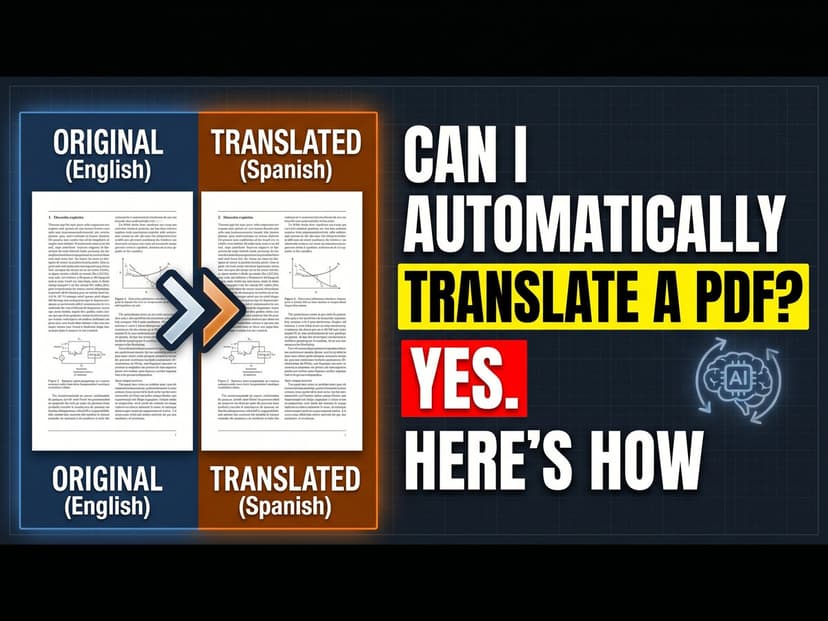
You receive a 50-page contract in Spanish. You need it in English by tomorrow. Five years ago, you'd spend 8 hours copying-pasting into Google Translate and fixing formatting. Today, automatic PDF translation exists. Upload. Select language. Download in 2 minutes. Done.
This guide explains how automatic translation actually works, which tools preserve your layout, when it's reliable enough for business use, and when you need a human translator instead.
How Automatic PDF Translation Actually Works
The Four-Step Process
Step 1: Text Extraction. The tool reads the PDF and identifies every text element. It maps position, font, size, color, and layout context. This is critical because text position tells you if something is a header, body text, or a table cell.
Step 2: OCR for Scanned Documents. If your PDF is a scanned image (like a photograph of a printed page), the tool runs OCR (optical character recognition) to convert the image pixels into machine-readable text. This is where free tools usually fail. their OCR is basic.
Step 3: Neural Machine Translation. The extracted text goes to an AI translation engine. Modern engines (DeepL, GPT-4, specialized models) are trained on billions of parallel texts in hundreds of languages. They understand context, idioms, and technical terminology far better than older rule-based translators.
Step 4: Layout Reconstruction. This is the hardest part. The translated text must fit back into the original layout. If German text is 30% longer than English, the tool must adjust font size or text flow. If Arabic reads right-to-left, the tool flips direction. If a table cell had 50 characters of English, but the Spanish translation has 80 characters, the tool must reflow intelligently.
Why This Matters
Free tools skip step 4. They translate the text and dump it back into the original layout, creating overflow, broken tables, and misaligned images. Professional tools do all four steps invisibly. You get a document that looks native to the target language.
Automatic Translation Methods: Which Actually Works
Method 1: Dedicated PDF Translation Tools (Best)
AnyLangPDF and similar tools are purpose-built for this. They execute all four steps automatically. Upload → Select language → Download. No intermediate steps. No workarounds. The tool understands PDFs deeply.
Advantages: Perfect layout preservation, OCR support, 100+ languages, batch processing, fast (2-3 minutes), professional quality, shareable links.
Cost: $8-20 per document. For 10 documents/month, that's $80-200. One-time cost, no subscriptions.
Method 2: Google Translate (Free But Limited)
Google Translate accepts PDF uploads. It's free. Upload a PDF, get a translated version. Sounds perfect, right?
The Reality: Google Translate skips step 4 (layout reconstruction). It translates the text accurately, but destroys the layout. Multi-column documents become single columns. Tables break apart. Images float randomly. For a simple one-page memo, it works. For anything formatted, it's unusable.
File Size Cap: 10MB limit. Large contracts and technical manuals don't fit.
OCR: Minimal. Scanned PDFs often fail to translate.
Best For: Quick, informal translations where layout doesn't matter. Not suitable for business documents.
Method 3: Word Export + Translate + Re-export (Slow)
Convert PDF to Word → Use Word's translate feature or paste into Google Translate → Export back to PDF. This technically automates the steps, but introduces conversion errors at each stage.
Problems: Each conversion loses data. Fonts change. Spacing breaks. Images shift. You end up with a document that's 60% correct and requires manual cleanup.
Time Cost: 2-3 hours for a 25-page document (conversion + translation + fixing).
Best For: Almost never. Only if you have no other option.
Real-World Scenarios: Where Automatic Translation Works
Scenario 1: A Law Firm Translating International Contracts
A contract from a German client is 45 pages. The signature blocks, legal terms, and table formatting must be preserved perfectly. Using AnyLangPDF, the document translates in 5 minutes with perfect layout. The attorney reviews the translation in an hour. Using Google Translate: 3 hours formatting fixes + 1 hour legal review. Total: 4 hours vs. 1.25 hours. Savings: 2.75 hours at $300/hour = $825 per document.
Scenario 2: A SaaS Company Localizing Product Documentation
A tech company has 200 pages of user guides, API documentation, and troubleshooting docs in English. They need them in Spanish, French, and German. Using automatic translation with a dedicated tool: 1 hour total (upload all 3 languages, download all 3 versions). Using Google Translate + manual fixes: 24 hours (8 hours per language to fix layout and verify technical accuracy). Savings: 23 hours. For 4 releases per year, that's 92 hours saved = $9,200 in developer time per year.
Scenario 3: A School Translating Multilingual Documents
A international school needs to translate enrollment forms, immunization records, and progress reports into 8 languages for families. Using a dedicated translator: 30 minutes per document type × 8 languages = 4 hours total for all 3 types. Using Google Translate: documents are unreadable due to formatting. Using manual copying and pasting: 30+ hours. Automatic tools with layout preservation save the school massive time and ensure parents can actually read documents. (See: How schools handle multilingual documents)
When Automatic Translation Works (And When It Doesn't)
Works Perfectly For:
Business documents (contracts, reports, emails), marketing materials, technical documentation, academic papers, user guides, invoices, travel documents, permits, educational materials. Basically anything that was originally written in a professional context.
Works Well For:
Medical records (with review), patent documents, financial statements, legal letters, website content, presentations, newsletters.
Needs Human Review:
Legal contracts (especially terms with jurisdiction-specific meaning), medical prescriptions (accuracy critical), literary translation (context and voice matter), creative writing, advertising copy, anything where brand voice is critical.
Doesn't Work For:
Handwritten notes, low-resolution scans, heavily redacted documents, documents with overlaid images and text, ancient or non-standard fonts.
Speed Comparison: Tool vs Tool
25-Page Document
Dedicated translator like AnyLangPDF: 3-5 minutes from upload to download. No manual work.
Google Translate: 2 minutes translation + 2 hours formatting fixes = 2.08 hours total.
Word export method: 1 hour conversion + 1.5 hours translation + 1.5 hours fixing = 4 hours total.
Manual copy-paste: 4-6 hours of manual work.
Dedicated tools are 24-48x faster for formatted documents.
100-Page Contract
Dedicated tool: 8-10 minutes.
Google Translate + fixes: 8 hours.
Manual method: 16-20 hours.
The gap widens with document size.
Cost Analysis: What Automatic Translation Actually Costs
Per-Document Cost Breakdown (25-page document)
Dedicated tool like AnyLangPDF: $12 tool cost + $0 your time (it's automatic) = $12 total.
Google Translate: Free tool + 2 hours cleanup at $50/hour = $100 hidden cost.
Word export method: Free tools + 3.5 hours at $50/hour = $175 hidden cost.
Professional human translator: $0.15-0.30 per word × 6,250 words = $938-1,875 per document.
Annual Cost (10 documents/month)
Dedicated tool: $12 × 120 documents = $1,440/year.
Google Translate DIY: $100 × 120 = $12,000/year in hidden labor costs.
Human translation: $938-1,875 × 120 = $112,560-225,000/year.
Automatic dedicated tools cost 8x less than DIY Google Translate and 78x less than human translation.
Language Support: Which Languages Work Best
Language Pairs With Excellent Quality
English ↔ Spanish, French, German, Portuguese, Italian, Dutch, Swedish, Norwegian, Danish. These have massive training data (billions of parallel documents). Accuracy is 95%+.
Language Pairs With Good Quality
English ↔ Russian, Polish, Turkish, Greek, Korean, Japanese, Chinese. Quality is still very good (90-94%) but with occasional awkward phrasing. Scanned PDFs may need human review.
Language Pairs With Acceptable Quality
English ↔ Vietnamese, Thai, Indonesian, Tagalog, Urdu, Hindi. Quality is functional (85-90%) but context can be lost. Not suitable for legal or medical documents without human review.
Which Tool Supports What
Google Translate: 133 languages but lower quality for underrepresented pairs.
AnyLangPDF: 100+ languages with document-optimized models (higher quality than general purpose).
How to Automatically Translate a PDF: Step-by-Step
Using AnyLangPDF
- Go to AnyLangPDF
- Click "Upload PDF" (drag-drop or browse)
- Select or confirm source language (usually auto-detected)
- Select target language from 100+ options
- Click "Translate"
- Wait 2-5 minutes (depending on document size)
- Download translated PDF or share via link
That's it. No copy-pasting. No formatting fixes. No subscriptions. Download and use immediately.
Frequently Asked Questions
How Automatic Translation Works
Q: Is automatic PDF translation as accurate as human translation?
For standard documents: yes, typically 95%+ accuracy. For specialized content (legal, medical, technical), AI is 90%+ accurate but nuance can be lost. For marketing or creative content where tone matters, human translation is still better.
Q: How does the tool preserve layout automatically?
The tool reads the PDF's internal structure (text positions, fonts, sizes), translates the text, then reconstructs the layout accounting for language differences. German (30% longer than English) requires different font sizing. Arabic (right-to-left) requires direction flipping. The tool does this algorithmically.
Q: What's the difference between OCR and regular PDF translation?
Regular PDF translation works on digital PDFs where text is machine-readable. OCR converts scanned images (photos of printed pages) into readable text first. Good tools do both automatically.
File Handling
Q: Can I automatically translate a scanned PDF?
AnyLangPDF supports scanned PDFs with built-in OCR. Google Translate has basic OCR with mixed results. Word export method requires you to run OCR separately first.
Q: Is there a file size limit?
AnyLangPDF handles files up to 500MB. Google Translate caps at 10MB. Word export has no hard limit but conversion errors compound with file size.
Q: Can I translate multiple PDFs at once?
AnyLangPDF supports batch uploads. Upload 10 PDFs, translate all to the same language, download all at once. Google Translate requires one at a time.
Quality and Accuracy
Q: Is automatic translation good enough for contracts?
For reviewing and understanding: yes. For signing and legal validity: you should have a lawyer review, especially for jurisdiction-specific language. AI translation can miss critical nuance in legal documents.
Q: What about medical or technical documents?
AI translation handles technical terminology well (90%+ accuracy). Medical documents need human review for dosages and critical instructions. Technical manuals can be auto-translated safely for internal use.
Q: How does translation quality vary by language?
Major languages (Spanish, French, German, Chinese) have 95%+ accuracy. Less common language pairs (Vietnamese, Thai, Turkish) are 85-90% accurate. The more training data a language pair has, the better the result.
Tools and Comparison
Q: Why not just use Google Translate?
Google Translate is free and works for text, but destroys PDF formatting. For any document with tables, columns, or layout formatting, Google Translate produces unusable results. You'll spend 2+ hours fixing formatting manually.
Q: What's the difference between AnyLangPDF and Google Translate for PDFs?
AnyLangPDF: Purpose-built for PDFs, preserves layout automatically, OCR included, no file size limit, batch processing. Google Translate: Free, destroys layout, 10MB limit, no OCR, no batch processing.
Q: Should I use a dedicated tool or a free online translator?
If your PDF has any formatting (tables, columns, images, headers), use a dedicated tool. If it's plain text only, Google Translate works fine. For professional documents, dedicated tools save time and preserve professionalism.
Cost and Efficiency
Q: How much does automatic PDF translation cost?
AnyLangPDF costs $8-20 per document depending on size. For 10 documents/month, that's $80-200. No subscriptions, no hidden fees.
Q: Is it cheaper than hiring a translator?
Much cheaper. Professional translation costs $0.15-0.30 per word. A 10,000-word document costs $1,500-3,000 to translate professionally. Automatic tools cost $15-30 for the same document.
Q: What about when I need batch translation?
AnyLangPDF handles batch uploads. Upload 50 documents, translate all to Spanish, download all translated versions in one operation. Human translators would charge separately for each document.
When to Choose What
Q: When should I use automatic translation?
For business documents, technical docs, marketing materials, academic papers, and anything with formatting. Automatic tools are fast, cheap, and good enough for 95% of use cases.
Q: When should I hire a human translator?
For creative writing, legal documents requiring jurisdiction-specific accuracy, literary translation, marketing where brand voice matters, or sensitive content where nuance is critical.
Q: Can I use automatic translation first, then hire a human to review?
Yes, and it's efficient. Auto-translate first (5 minutes, $15). Have a human review/edit (costs less than translating from scratch because they're editing, not translating). Total cost: $15 + 2 hours editing = $115. Much cheaper than $1,500 human translation from scratch.
Bottom Line: Yes, You Can Automatically Translate PDFs
Automatic PDF translation is mature technology. It works. It's fast (2-5 minutes). It's cheap ($8-20 per document). It preserves layout. It handles 100+ languages.
Stop copy-pasting into Google Translate. Use AnyLangPDF. Upload. Select language. Download in minutes. Done.
Related Articles on PDF Translation and Localization
Translation Service for Documents: How to Pick (2026 Guide)
Choosing a translation service for documents in 2026: compare DeepL, Google Translate, Adobe Acrobat AI, and AnyLangPDF on accuracy, format preservation, and cost.
Best PDF Translation Service: What Reddit Actually Says (2026)
Tired of conflicting Reddit threads? We aggregated what real users say about the best PDF translation services in 2026, from DeepL to AnyLangPDF.
Best Free AI PDF Translator in 2026 (Honest Comparison)
Looking for a free AI PDF translator? We compare what is actually free, what has hidden limits, and which tool gives you the best result without paying.
